Quick Start Guide
Get started with GeSmart Sync in 5 minutes!
Step 1: Login
- Open the GeSmart Sync application in your browser
- Enter your email and password
- Click "Login"
Step 2: Check Connections
Look at the Module Connection Status panel:
- ✅ Green checkmarks = Everything is connected
- ❌ Red X marks = Check Configuration

warning
If you see red X marks, you'll need to configure API credentials before syncing.
Step 3: Start Your First Sync
Option A: Sync Everything (Recommended for first time)
- Scroll to "Sync All" section
- Click "Full All" button
- Wait for sync to complete (may take 30 minutes to 2 hours depending on data size)
Option B: Sync One Type at a Time
- Find the entity you want (Products, Customers, Brands, or Categories)
- Click "Full" button next to it
- Monitor progress in the Live Sync Monitor below
Step 4: Watch the Progress
You'll see two panels appear:
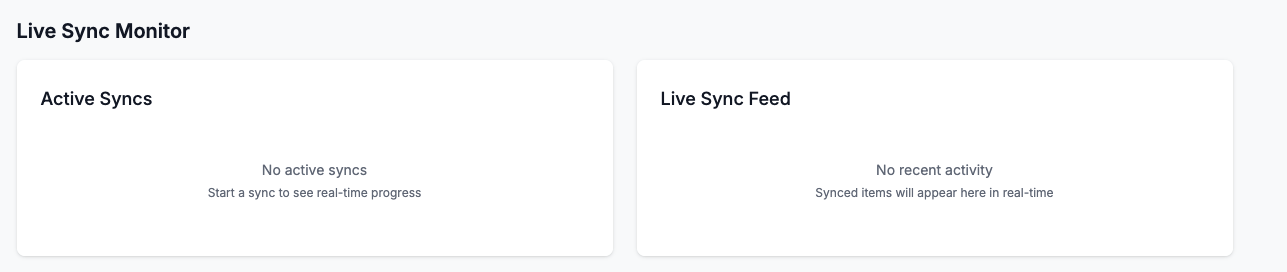
Left Panel - Active Syncs:
- Progress bar showing completion percentage
- Current item being processed
- Success/error counts
Right Panel - Live Sync Feed:
- Real-time list of items being synced
- Shows each item as it's processed
- Icons: ➕ Created, ✏️ Updated, ⏭️ Skipped
Step 5: Check Results
After sync completes:
- Check the Sync Status panel for results
- Review Recent Logs for any errors
- Verify items in your PrestaShop store
Understanding the Dashboard
Top Section: Statistics
- Total items synced today
- Success rate
- Error count
Middle Section: Controls
- Manual Sync: Buttons to start syncs
- Sync Status: Shows last sync time and results
Bottom Section: Monitoring
- Live Sync Monitor: Real-time progress (only visible during sync)
- Recent Logs: History of sync operations
Common Tasks
Daily Sync (Recommended)
- Click "Incremental" next to Products
- This syncs only changed items (fast, ~5-10 minutes)
Weekly Full Sync
- Click "Full All"
- Syncs everything (slower, ~1-2 hours)
- Best done during off-peak hours
Check for Errors
- Look at Sync Status panel
- If "Errors" > 0, click to see details
- Review Recent Logs for specific error messages
Quick Tips
-
Incremental vs Full
- Use Incremental for daily updates (fast)
- Use Full for initial setup or weekly maintenance (complete)
-
Best Time to Sync
- During off-peak hours (early morning or late evening)
- Avoid peak shopping times
-
Multiple Syncs
- You can run multiple entity syncs at once
- Each shows its own progress bar
-
If Sync is Slow
- Large datasets take time (10,000+ items = hours)
- Check progress bar - if it's moving, it's working
- Monitor the "Current Item" to see what's being processed
-
If Errors Occur
- Check Recent Logs for details
- Most errors are non-critical (item-specific)
- Contact support if many errors or sync fails completely
Success Checklist
After your first sync:
- All connections show green checkmarks
- Sync completed without errors
- Items appear in PrestaShop store
- Stock levels are correct
- Prices are correct
Need more details? Check out the Complete User Guide!