Manual Sync Operations
Starting a Sync
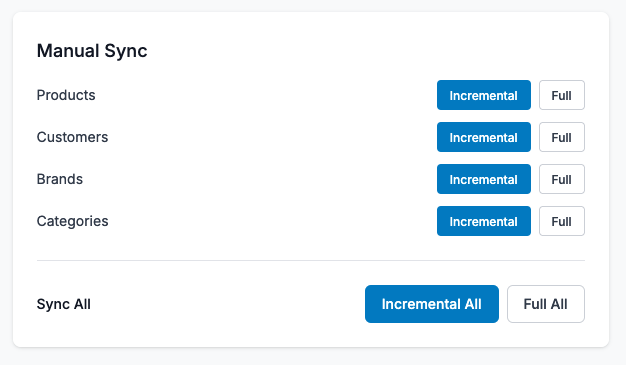
-
Navigate to Dashboard (if not already there)
-
Choose what to sync:
- Individual Entity: Click "Incremental" or "Full" next to Products, Customers, Brands, or Categories
- All Entities: Click "Incremental All" or "Full All" at the bottom
-
Wait for confirmation
- The button will change to show "Syncing..." status
- Progress will appear in the Live Sync Monitor
Sync Options Explained
Incremental Sync
- What it does: Only syncs items that have changed since the last sync
- When to use: Regular updates, daily syncs, when you want speed
- Benefits: Faster, less load on systems, only updates what's needed
- Example: If 100 products changed out of 10,000, only those 100 are synced
Full Sync
- What it does: Syncs ALL items, regardless of when they were last updated
- When to use: Initial setup, after major changes, when you want to ensure everything is synced
- Benefits: Complete synchronization, catches any missed updates
- Example: All 10,000 products are checked and synced
Running Multiple Syncs
You can run multiple entity syncs simultaneously:
- Start a sync for Products
- While Products is syncing, start a sync for Brands
- Both will run in parallel
- Each will show its own progress in the Active Syncs panel
Best Practice: For large datasets, sync one entity at a time to avoid overwhelming the system.