Monitoring Sync Progress
Real-Time Monitoring
When a sync is running, you'll see two panels:
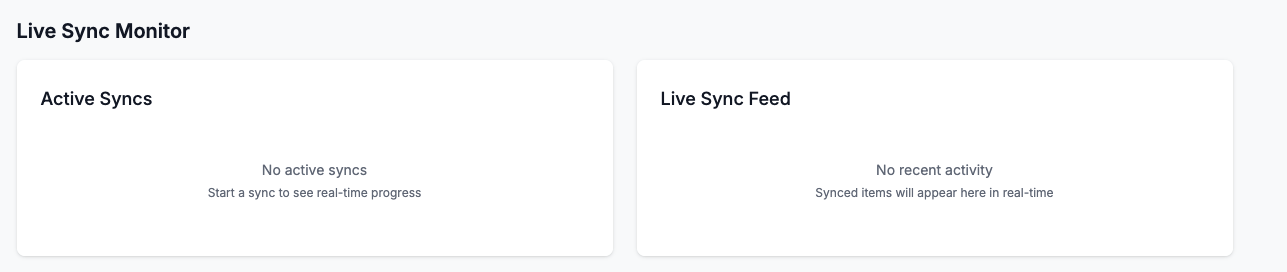
Active Syncs Panel (Left)
Shows:
- Progress Bar: Visual indicator of completion percentage
- Progress Count: "X / Y" items processed
- Current Item: The exact item being processed right now
- Statistics:
- ✓ Success count (green)
- ✗ Error count (red)
- Time elapsed
Live Sync Feed Panel (Right)
Shows a real-time feed of items being synced:
- Action Icons:
- ➕ Created (new item added)
- ✏️ Updated (existing item modified)
- ⏭️ Skipped (item not changed)
- Item Details: Name, code, or ID
- Timestamp: How long ago it was processed
Understanding Progress Indicators
- 0%: Sync just started
- 1-99%: Sync in progress
- 100%: Sync completed
- Error count > 0: Some items failed (check Recent Logs)
What to Watch For
✅ Good Signs:
- Progress bar steadily increasing
- Success count increasing
- Items appearing in the feed
- No errors or minimal errors
⚠️ Warning Signs:
- Progress stuck at same percentage for long time
- Error count increasing rapidly
- "Connection failed" messages
- Sync taking much longer than usual